التصنيف: أخبار وتكنولوجيا وانترنت
-
To fix and update a Dart project application
To fix and update a Dart project application, you can use the following commands depending on your specific needs:
To fix project dependencies:
bash code
dart pub getThis command fetches and updates the dependencies specified in your pubspec.yaml file.
To upgrade dependencies to the latest versions:
bash code
dart pub upgradeThis command upgrades your project’s dependencies to the latest compatible versions.
To analyze your code and check for issues:
bash code
dart analyzeThis command performs static analysis on your Dart code and reports any potential issues.
To format your code according to Dart conventions:
bash code
dart format .This command formats your Dart code based on the Dart style guide.
To run tests:
bash code
dart testIf you have tests written for your Dart project, this command will execute them.
To build your Dart application:
bash code
dart buildThis command builds your Dart application. The specific artifacts generated depend on your project configuration.
Make sure to run these commands in the root directory of your Dart project. Additionally, you might need to adjust these commands based on your project setup and the tools you are using. If you are using Flutter, for example, you would use flutter instead of dart for many of these commands.
-
How-To-Build-Complete-CRUD-Application-in-Laravel-10
Laravel 10 Complete CRUD Application
- Download the project (or clone using GIT)
- Copy
.env.exampleinto.envand configure your database credentials - Go to the project’s root directory using terminal window/command prompt
- Run
composer install - Set the application key by running
php artisan key:generate --ansi - Run migrations
php artisan migrate - Start local server by executing
php artisan serve
-
تعريب vbulletin4.2.5-language-UTF-8
تعريب vbulletin4.2.5-language-UTF-8
Download Here
vbulletin4.2.5-Ar_language-SUITE – UTF8
تعريب vbulletin4.2.5-language-Windows-1256
-
تعريب vbulletin 4.2.5-language-UTF-8
تعريب vbulletin5.7.5-language-UTF-8
تعريب ملف اللغه لمنتدى vBulletin الجيل الخامس الإصدار vb5.7.5
Download Here
vbulletin5-575-Ar-Lang-Unicode-UTF-8
vbulletin5-575-Ar-Lang-Windows-1256
تعريب ملف اللغه لمنتدى vBulletin الجيل الخامس الإصدار vb5.7.5
Download Here
-
How To Fix “Error Establishing A Database Connection” In WordPress
Learn how to fix “Error Establishing A Database Connection” on your WordPress blog!
-
How to Post a WhatsApp Status From WhatsApp Web ?
Follow the below steps to post a status on WhatsApp Web using the WhatsUp+ for WhatsApp Web extension:
- Close WhatsApp Web if it is already open.
- Then go to the web store or add-ons page of your browser.
- Look for the WhatsUp+ for WhatsApp Web extension and add it to your browser.
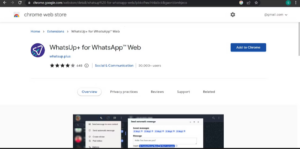
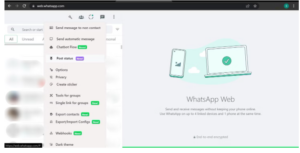
- Your browser will automatically open WhatsApp Web after you add the extension. There, you’ll see a slightly modified interface with a few more options.
- Click on the WhatsUp+ icon.
-
Select Post statusfrom the dropdown menu. - Here, you can import videos, images, and audio or write some text to post as a status. You can also select the background color of your choice and choose from five different font types.
- Once you have attached an image, audio, or video and added a text description you wish to use as a status, click on Send.
-
Entering Debug Mode To do this, you need to edit your config.php file and add the following line:
When developing for vBulletin or troubleshooting issues, you often have to enter Debug Mode. Debug Mode provides you with more information about how vBulletin runs some examples include: page generation times, templates used on a page, the memory used on a page and how many queries it took to generate the page. Debug Mode should not be used on a live production site unless absolutely necessary. It can expose information that could weaken security on your site.
$config[‘Misc’][‘debug’] = true;
-
One or more database tables are unavailable. The database may need to be repaired.
To allow use of this page to automatically repair database problems, please add the following line to your
wp-config.phpfile. Once this line is added to your config, reload this page.define('WP_ALLOW_REPAIR', true);Check secret keys
While you are editing your
wp-config.phpfile, take a moment to make sure you have all 8 keys and that they are unique. You can generate these using the WordPress.org secret key service./wp-admin/maint/repair.php?referrer=is_blog_installed
https://www.examble.com/wp-admin/maint/repair.php?referrer=is_blog_installed